
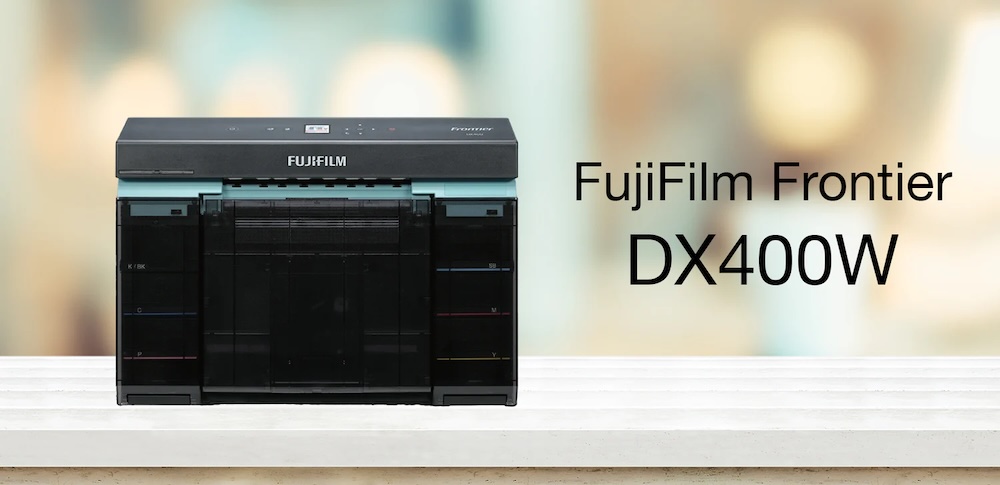
Meet the Fujifilm DX400: A Double-Sided Powerhouse for Darkroom Users
If you’re a high-volume studio, Santa or Easter Bunny photographer, or a team & individual sports shooter, you’re going to want to know about this new printer from Fuji. In a new video, Darkroom’s own software specialist, Eugene, gets hands-on with the brand-new Fujifilm DX400 and shows how it integrates beautifully into Darkroom Core and Pro.
This post walks through the highlights of that video – what makes the FujiFilm DX400 special, how to get it connected, and a few real-world workflows that will have the print geeks among us grinning. Keep reading for a special offer on the printer.
Why the Fujifilm DX400 is a Big Deal
Eugene calls out three things that really set the DX400 apart:
1. True roll printer flexibility
The DX400 is a true roll printer, which means:
Load an 8″ roll and you can print:
- 4×8
- 8×8
- 8×10
- 8×20
- 8×24 panoramic prints
Swap to a 5″ or 6″ roll and you’re ready for:
- Standard print sizes
- Panoramic prints on those widths
All of this happens without changing anything in the software. Once the printer and driver are in place, Darkroom just sends the job and the DX400 takes care of business.
2. Network printing
The DX400 is a network printer. Instead of plugging directly into your workstation via USB, you can:
- Connect it via Ethernet
- Put the printer in another room (or down the hall)
- Send jobs from any Darkroom workstation on the network
For busy studios and labs, this means you can tuck the printer somewhere practical and quiet, while your sales or editing stations stay clean and client-friendly.
(If you prefer USB, that’s still an option—just plug in the USB cable and go.)
3. Duplex (double-sided) printing
This is the feature that has Eugene genuinely excited: duplexing.
In the video, he shows an 8×10 print in the same order as a set of four double-sided “trader cards” on a 5×7. Front and back, full color, luster finish, and rich detail.
How to set up and use the DX400 with Darkroom Software
Step One: Installing the DX400 Driver in Windows
Before Darkroom can communicate with the DX400, Windows needs to be aware of it.
In the video, Eugene shows you how to do the following:
- Go to Fujifilm’s website and download the DX400 driver.
- Unzip the file and run the installer.
- Choose Network Connection in the installer if connecting via Ethernet. (If you’re using USB instead of Ethernet, plug in the USB cable and let Windows detect the device during driver install.)
- Enter the printer’s IP address.
- Let the installer search the local network, find the printer, and finish adding the Windows driver.
Once that’s done, go into Windows Printers & Scanners and print a test page to confirm everything is working before adding it to Darkroom. Always a good habit.
Step Two: Adding the DX400 to Darkroom Core/Pro
With the Windows driver installed and tested, it’s time to bring Darkroom into the picture. First, make sure you have the latest version of Darkroom Core or Pro. You can download the latest version here on the Darkroom Support site.
Inside Darkroom:
- Open Darkroom Core or Pro.
- Go to the Setup tab.
- Open Printer Options and click Add Printer.
- Scroll the list, and you’ll see a new option for Fujifilm DX400.
- Select it and click OK to add it.
For the Darkroom geeks who like to run multiple printers (and we know you’re out there):
You can add multiple DX400 printers in Windows — for example:
- One with an 8″ roll
- One with a 5″ roll
- One with a 6″ roll
Each instance will show up in Darkroom, and you can name/label them so you always know which is which. Great for high-volume labs, kiosks, or setups where you’re printing 4×6, 5×7, 8×10, and panoramics all day long.
Building Double-Sided Packages in Darkroom
Once the printer is added, the fun begins. Eugene walks through how to create packages that take advantage of the DX400’s duplexing.
Example 1: 4×6 double-sided print
- Create a new package group in Darkroom (Eugene names his after the DX400).
- Add a 4×6 print from the 6″ roll section.
- Add a second instance of the same 4×6 (don’t just set quantity to 2—add it as another print item).
- For each 4×6 entry:
- Double-click the print item
- Go to Print Commands
- Click Add and set Double-Sided: Yes (this option appears once the DX400 driver is installed).
Darkroom will automatically choose the correct long-edge/short-edge flip based on orientation. If you have a complex setup (for example, a vertical individual on one side and a horizontal team photo on the other), you can override the flip settings manually.
Example 2: 5×7 holiday card with front and back
This is where seasonal photographers will lean in. Eugene builds a 5×7 holiday card package:
- Add a new package (e.g., “5×7 Holiday Card”).
- Add a 5×7 print twice (front and back).
- For the first instance:
- Add the front border/template.
- For the second instance:
- Add the back template (in his example, the back is mostly design and text, no photo).
- In Print Commands, set Double-Sided: Yes for both.
- Turn on Quick Print for this package, since there’s no need to edit the back each time.
Now you’ve got a fast holiday card, perfect for Santa events where:
- The main photo is free
- The card includes a QR code on the back that links to additional products, galleries, or upsell offers
Sports Packages & Trader Cards on the DX400
Next, Eugene switches gears to show a sports photography workflow:
- A plain 8×10 individual
- A 5×7 team photo
- A set of 4-up trader cards (front and back) on a 5×7
In Darkroom:
- Create a new package group (e.g., “DX400 Sports”) and set it as the default.
- Add:
- An 8×10 print (for the individual memory print)
- A 5×7 (for the team photo)
- Then create a package that uses “4 wallets on a 5×7” as the base (perfect for trader cards).
- Add that 4-up item twice, then set each instance to Double-Sided: Yes in Print Commands.
- Leave templates off in the package itself and instead build and adjust the front and back layouts in Photo Workshop, which gives maximum flexibility for:
- Moving players around
- Updating team and player text
- Tweaking designs per league or team
The result is a single order that can include:
- 8×10 individual
- 5×7 team
- Double-sided 4-up trader cards on 5×7
All printed on the roll-based, duplex-capable DX400.
Real-World Print Quality: Eugene’s Take
Eugene has seen a lot of prints over the years, and he doesn’t throw around hype lightly. His first impressions of the DX400:
- The luster finish is vibrant and rich.
- Color accuracy is excellent.
- Double-sided luster prints look and feel premium.
He even admits he’s “not a glossy printer” person, but double-sided luster prints with this level of color and detail? That’s something special. He compares the DX400 to its predecessor, the DX100, which he’s used and loved for almost a decade. Just as the DX100 shifted what was possible in labs and studios, the DX400 feels like the next step forward, especially with duplexing and network printing in the mix.
A big shout-out to Imaging Spectrum for hosting him and allowing us to get hands-on time with the printer. If you’re near their Plano, Texas location, it’s definitely worth a visit to see the DX400 in action. Right now, Imaging Spectrum has a special offer! Save $50 on Darkroom Core with the purchase of a Fuji DX400 or $100 with Darkroom Pro. Call them at 214-342-9290 or email sales@imagingspectrum.com
Ready to Try the DX400 with Darkroom?
If you’re:
- Running Santa or Easter Bunny events
- Offering holiday cards with built-in upsells via QR codes
- Shooting sports leagues and delivering team, individual, and trader cards
- Or just ready for a network-ready, roll-fed, double-sided printer that plays nicely with Darkroom Core and Pro
…the Fujifilm DX400 is absolutely worth a look. Watch Eugene’s full walkthrough on our YouTube channel for the step-by-step visuals, then fire up Darkroom, add the DX400 driver, and start building some double-sided magic of your own.
Thanks for reading! Questions or comments? Please post below or contact us at support@darkroomsoftware.com