
Bring Prints to Life with Lenticular Printing in Darkroom Booth
If you’re always on the lookout for ways to make your photo booth prints stand out, you’re going to love this one. In a recent quick-tip video, Darkroom Software specialist Eugene Wise walks through a brand-new feature in Darkroom Booth: lenticular printing.
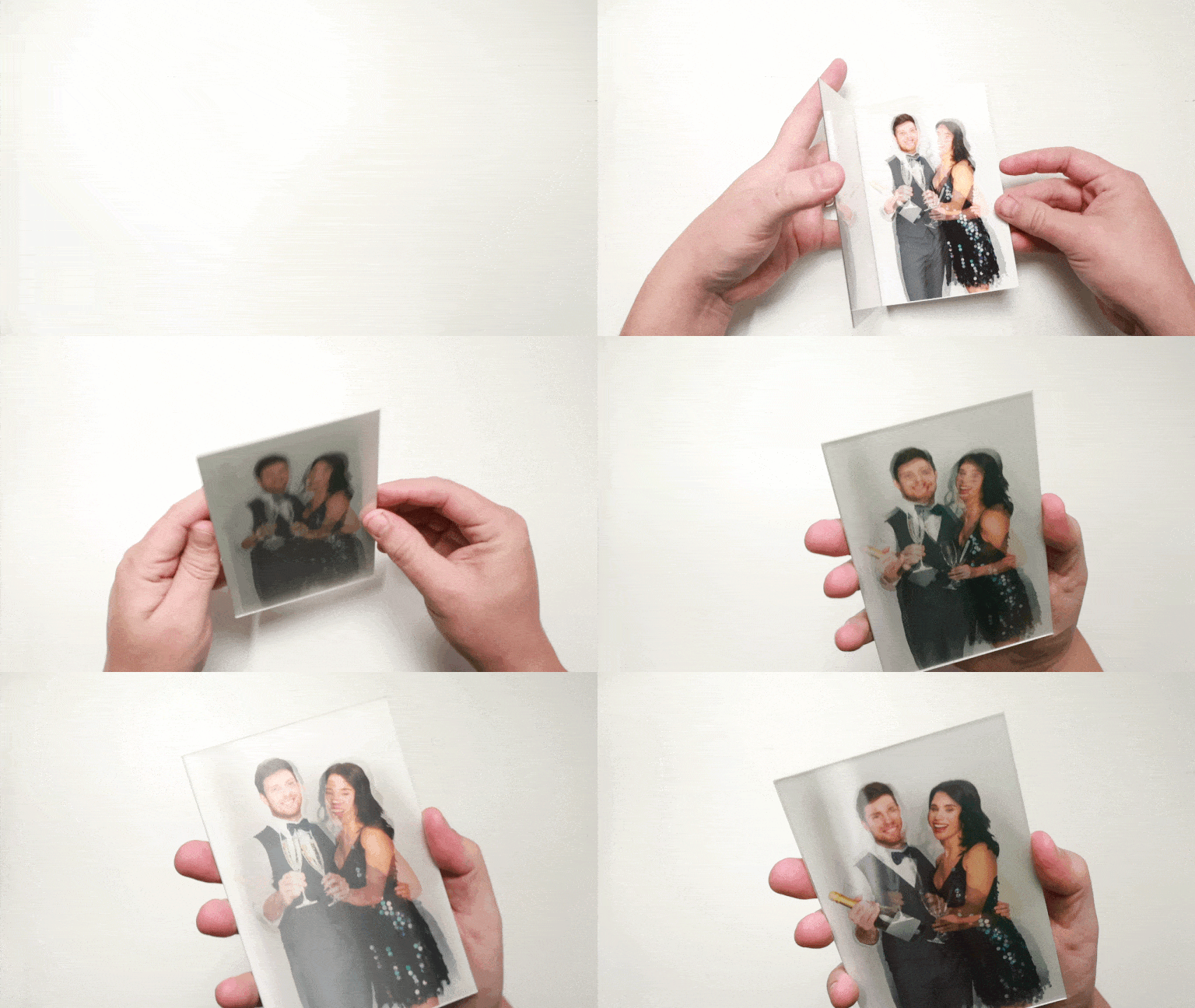
Lenticular prints use a special lens to create the illusion of motion—when the print is tilted, the image animates. Think hats popping on and off, serious-to-silly pose changes, or subtle movement that makes guests say, “Whoa, how did you do that?”
Let’s break down how it works, how to set it up, and Eugene’s best practices for great results.
What Is Lenticular Printing?
Lenticular printing combines multiple photos into a single interlaced image that aligns with a lenticular lens. As the viewing angle changes, different images appear—creating a smooth animation effect. The end product is nostalgic, tactile and does not require digital screens, batteries, or apps 🤩
The good news? Darkroom Booth handles all the interlacing for you. You just capture multiple images, and the software does the heavy lifting. The proper lenticulare lenses are available from VueThru or Imaging Spectrum.
Getting Started with the Sample Templates
To help you hit the ground running, Darkroom provides both vertical and horizontal sample lenticular events that you can download directly from the Help Center. These are great for:
- Seeing how a lenticular template is configured
- Testing with your printer and lenses
- Using as a starting point for your own custom designs
Open a sample event, edit the template, and head straight to Print Commands to explore the new Lenticular tab.
Recommended Lenticular Settings (Very Important!)
Eugene highlights a few key settings that make all the difference:
1. Lines Per Inch (LPI)
- Recommended: 60 LPI
- This matches best with the DPI of most event photo printers.
- While lenses are available in 40 or 50 LPI, those can sometimes clash with printer resolution and reduce image quality.
2. Orientation
- Lenticular lenses have lines that run either:
- Top to bottom (horizontal prints), or
- Left to right (vertical prints)
- Match this using Short Side or Long Side in Darkroom Booth.
- Eugene prefers Short Side for vertical images.
3. Bleed Setting (Critical!)
- Set Bleed = No Bleed
- Printers usually print slightly beyond the edge, but lenticular prints need 100% alignment.
- Turning bleed off ensures the interlaced lines line up perfectly with the lens.
💡 Pro Tip: Use the built-in test print. When viewed through the lens, the guide lines should appear solid black or white—this confirms proper alignment.
How Many Photos Should You Use?
Lenticular prints work best with:
- 2 or 3 photos per session
Darkroom Booth automatically calculates how to interlace the images based on your session settings. While more images are technically possible, Eugene recommends sticking to two or three for the smoothest animation and best clarity.
Building a Lenticular Template from Scratch
Creating your own lenticular template is surprisingly simple:
- Start a New Template
- Set the correct size (for example, 4×6 vertical)
- Enable Lenticular Printing in Print Commands
- 60 lines per inch
- No bleed
- Add your elements:
- Background
- Photo object (chroma key if needed)
- Foreground overlay
- Save it (Eugene stores his in a Novelty group)
When prompted about mismatched photo counts, choose No—you want multiple photos per session so Darkroom can interlace them.
Testing the Lenticular Experience
Once the booth is running:
- Guests take two (or three) photos
- Darkroom Booth interlaces them into a single print
- Optionally, the same images can also be turned into a GIF and sent digitally
Without the lens, the print looks slightly blurry—this is normal. Slide it behind the lenticular lens, tilt it, and suddenly the magic happens: props appear and disappear, expressions change, and the print comes alive.
Creative Ideas for Lenticular Booths
Lenticular printing opens the door to all kinds of fun concepts:
- Hat on / hat off
- Serious face → silly face
- Before & after props
- Subtle motion for branded activations
It’s a tactile, interactive keepsake that feels premium and unforgettable.
A New Way to Wow Your Guests
Lenticular printing is a perfect example of how Darkroom Booth keeps pushing photo booth experiences forward—without making things complicated for operators.
If you already have the right lens and printer, you can start experimenting today. Download the sample events from the Help Center, follow Eugene’s recommendations, and give your guests a print they’ll keep picking up and tilting long after the event ends.
Looking for VueThru Lenticular Lenses? They are available in quantities of 25 or 100 from Imaging Spectrum.
Happy printing—and happy animating! 🎉
Check out Eugene’s Video now…
Questions or comments? Please comment below or contact our support team by emailing support@darkroomsoftware.com