
Welcome to the Darkroom Software Photographers Blog

10 Things You Don’t Know About Darkroom Booth
Darkroom Booth software is deep and truly gives you the freedom to do just about anything with your photo booth experience. All while maintaining simplicity. We are amazed every day at the cool things some of our customers are doing. And hardly a day goes by when we...

Top 5 Reasons to Keep Your Photo Booth Software up to Date
Keeping your photo booth software up to date is important for several reasons. Here are a few of the more important reasons… 1. Support for the latest cameras, printers, computers and operating systems. By keeping your photo booth software up to date you are ensuring...
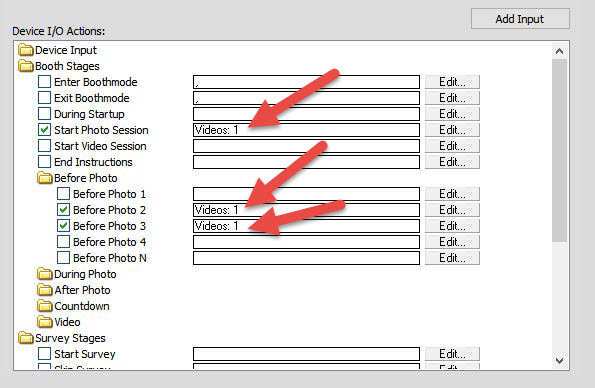
Photo Booth Video Prompts with Darkroom
With Darkroom Booth 2 you can replace text instructions with video prompts. In this example we used a dancing Santa video with a transparent alpha channel overlaid on a screen shot of the screen display. After adding an appropriate voiceover with instructions we added...
New Webinar: Photo Booth Troubleshooting Basics
This webinar will cover basic photo booth troubleshooting procedures and techniques. Thursday December 3, 2015, 11am – 12pm CST Topics to be covered include: • Printer connectivity and settings• Basic software troubleshooting• Lighting issues• Camera connectivity and...
Next Webinar: Darkroom Booth Template Design Basics
Post to “Anywhere” with Darkroom Booth and Dropbox
Use an Automator to Post to “Anywhere” Flickr, Twitter, Instagram, Pinterest, Tumblr, the list goes on and the requests from your clients get trickier and seem to change by the week! Unlock the social potential of your photo booth with Darkroom Booth photo booth...
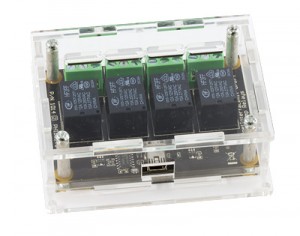
Phidget for Darkroom Booth
One of the new additions to Darkroom Booth 2 is Phidget control. Phidgets are “Products for USB Sensing and Control”. Huh? Phidgets is a company that makes little boards that can connect to your computer with a USB cable. On the other end of the board, you can plug in...

Imaging USA Show Specials
If you will be in Nashville for Imaging USA please visit us at Booth 655. We will showing some exciting new features soon to be added to Darkroom Booth, Core and Pro software. You can take advantage of the following show specials on our website through Friday February...
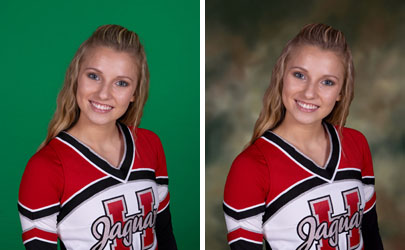
Lighting for Green Screen photography and Darkroom Software
The key to great results with Chroma-key backgrounds is good, consistent lighting. The examples below illustrate different lighting and exposures and the results. All of these images were processed with the default settings in Darkroom Booth photo booth software. The...
Free Holiday Photo Booth Templates with Sound & Matching Prints
Here are a couple of holiday themed templates that you can easily customize and use for your holiday photo booth events. These templates are available as a free download and include sounds and a matching 2×6 print layout. Check out the preview videos to see how they...
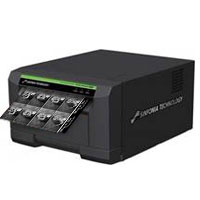
Top Considerations When Building Your Own Photo Booth
Building your own photo booth? Based on experience from building my own photo booths and helping Darkroom customers as well, here are some things to consider when looking at hardware options. Camera Most first time photo booth builders go for the least expensive...
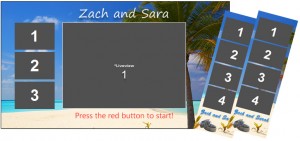
Will My Templates work in Darkroom Booth Photo Booth Software?
“I’ve been using different photo booth software and I want to upgrade to Darkroom Booth. Will my old print templates work with Darkroom Booth?” Yes! We’ve helped many photo booth owners and operators make the switch to Darkroom Booth and one of their favorite features...
Windows 10 – Should I update my photo booth or event photo system?
UPDATE: Windows 10 has since been released and there are no known issues when used with Darkroom products.Microsoft is set to release Windows 10 on July 29th and it will be a free upgrade to all current Windows 7, 8 and 8.1 user. The Darkroom team has tested all of...
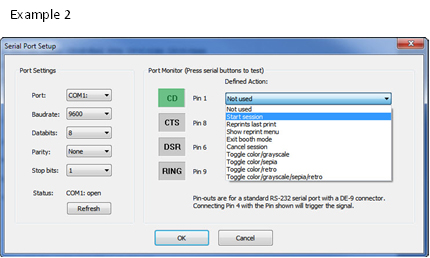
How to use Arcade style buttons with Darkroom Booth
There are 2 ways to use arcade buttons with Darkroom Booth. One is to use a USB mouse and take it apart and replace the original mouse buttons with arcade buttons. This will require some minor soldering but is not complex. You can use an inexpensive mouse that can be...
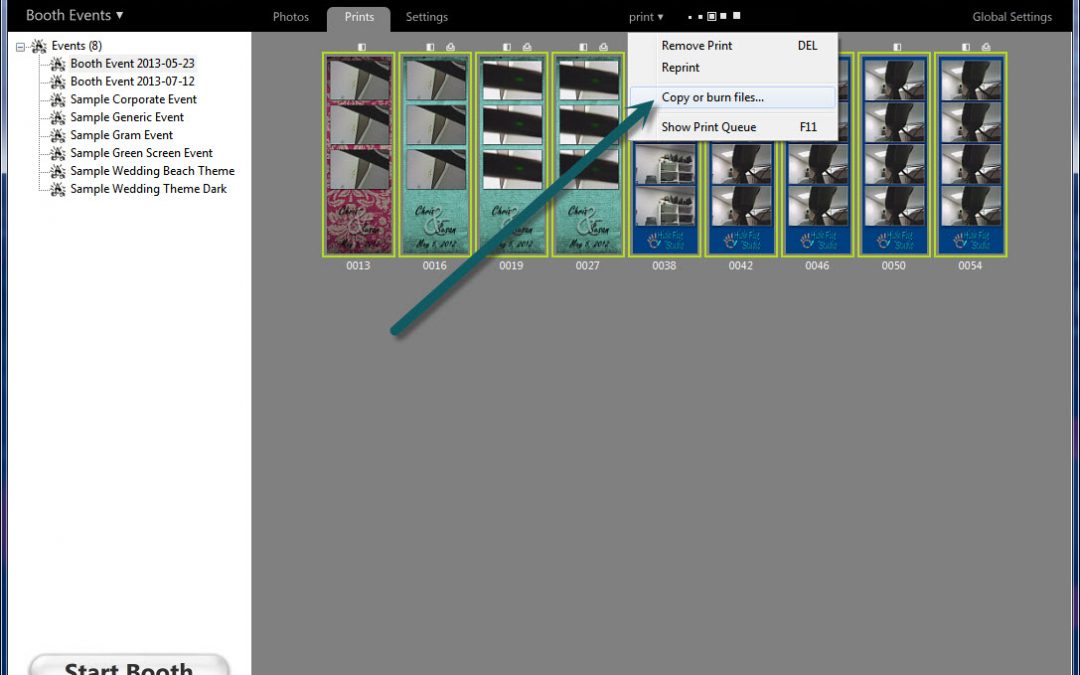
How to copy images and finished photo strips to a CD or Thumb Drive
We have many users that offer their customers a thumb drive (or CD) of images after their photo booth event. This task only takes a few clicks of the mouse – here’s how. First, select the event to export then click on either the Photos or the Prints Tab (Photos are...
How to create touchscreen buttons in Booth
This video will show you how to create and edit touchscreen elements (buttons) in Darkroom Booth software.
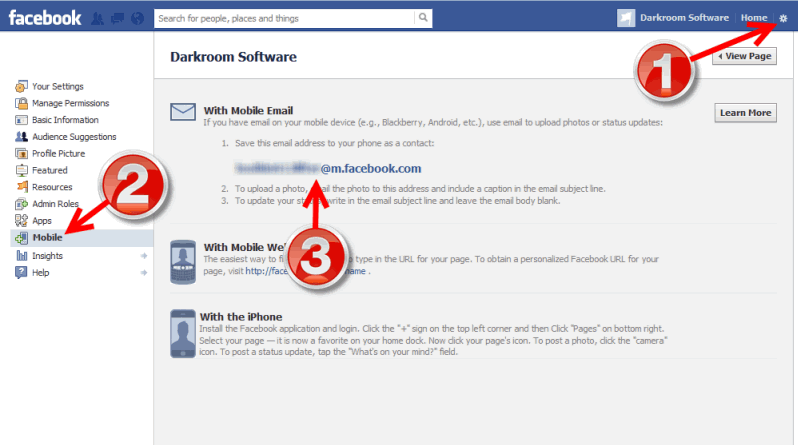
How to Facebook with Darkroom Booth
You can post images to Facebook Pages with Darkroom Booth by using the built in emailer. The benefits of doing this is that it’s fast, easy, and there are no passwords to enter or remember (this also works with other social sites like Twitter). Here’s how… First,...
Advanced Booth Screen Editing
This article will cover some Advanced Booth Screen template Editing. Darkroom Booth allows you to control when items are shown and hidden during the booth session. For example, you can have a “start button” that appears on screen until someone clicks on it. After...
Create a Print Template from scratch in Booth
This article will show you how to create a Print Template (in seconds) from scratch in Darkroom Booth. Print templates can be almost any size and can be as simple as one or more photos or as complex as many photos, graphics, and text fields all linked together. Here’s...

How does Booth 2 upgrade work?
Darkroom Booth version 2 is an upgrade over 1.5 and so requires its own activation. When you run Booth 2 for the first time, it will ask you for an activation code. There are two kinds of Booth 2 activation codes, Full Code (i.e. a new 2.0 purchase) and Upgrade Code...